The initial setup for one portfolio takes about 10 minutes. Once connected, the sync itself runs for a few minutes, and from then on every new transaction is added to the portfolio automatically.
How to sync Strum with your IBKR brokerage account
A step-by-step guide: connect Interactive Brokers through Plaid and every new transaction flows into Strum automatically, with no monthly report exports to do by hand.

Author
Oleksandr Yutysh· Co-founder of Strum
Interactive BrokersConnection via Plaid~10 minutesAutomatic transactions
Why it matters
~10 minutes
Broker sync — set it up once, and it keeps running
Syncing your Strum account with an Interactive Brokers (IBKR) brokerage account takes the manual work off your hands: no more exporting reports of new trades every month. Setup happens once per portfolio (about 10 minutes), and from then on every new transaction from the connection date onwards is added to that portfolio automatically.
Step 1
Create a new portfolio for the import
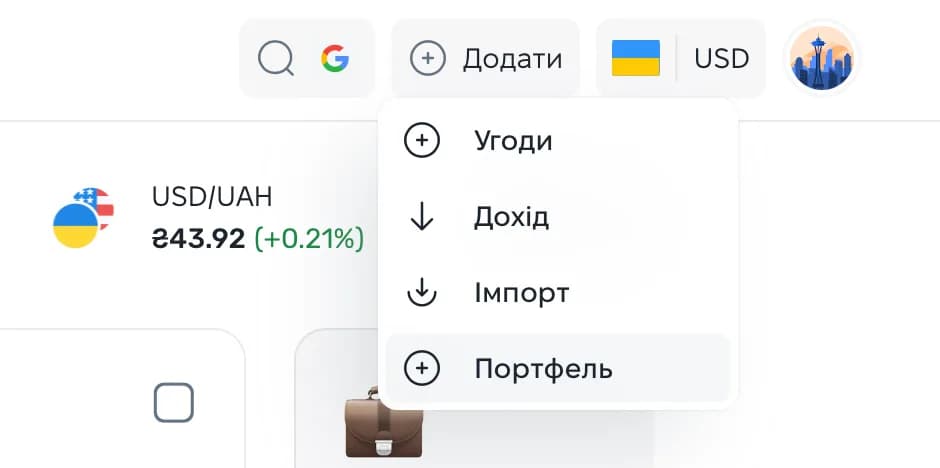
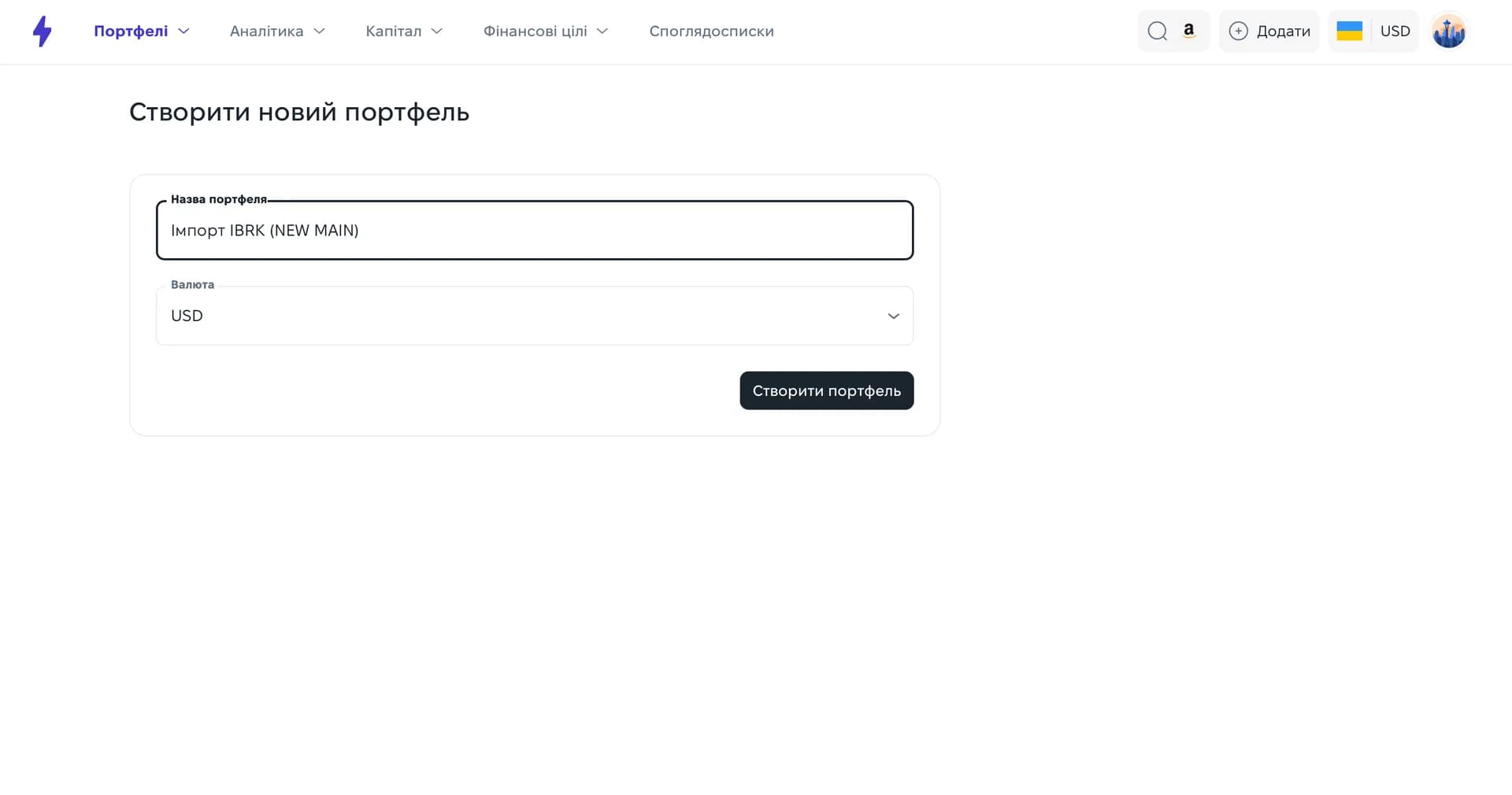
In the Strum top bar, click “Add” → “Portfolio”. Give it any name you like — “IBKR import”, for example — and click “Create portfolio”. We recommend keeping a separate, empty portfolio dedicated to automatic transaction imports.
Step 2
Start the import and choose a source
Open “Add” → “Import” again. Select the portfolio you have just created, then pick “Connect a broker” as the import source.
Step 3
Set up cash tracking
If you track cash in your portfolio balance, tick that option and select the matching account. If all you care about is the value of your assets, choose “No, asset value only” and click “Save”.
Step 4
Connect through Plaid and select Interactive Brokers
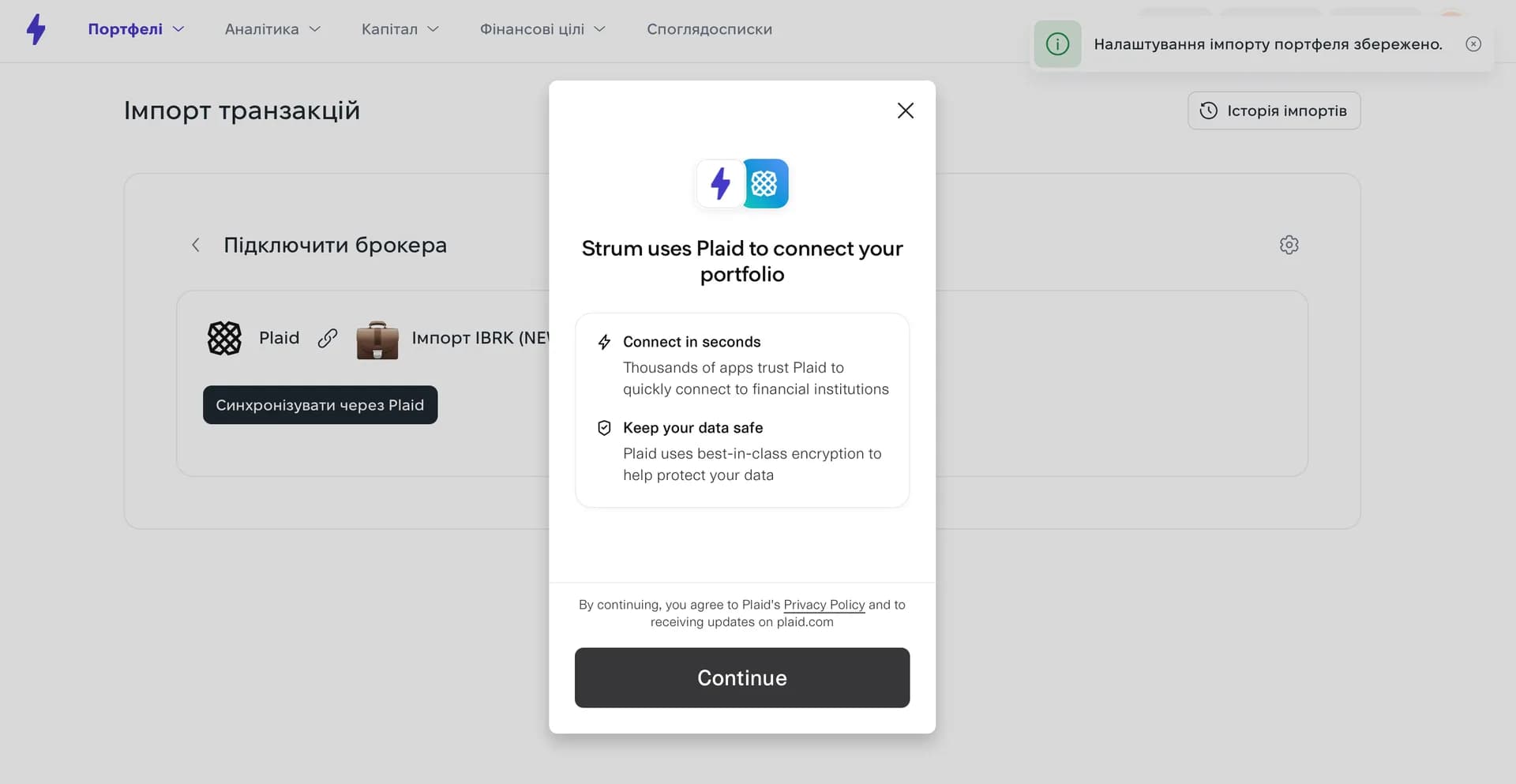
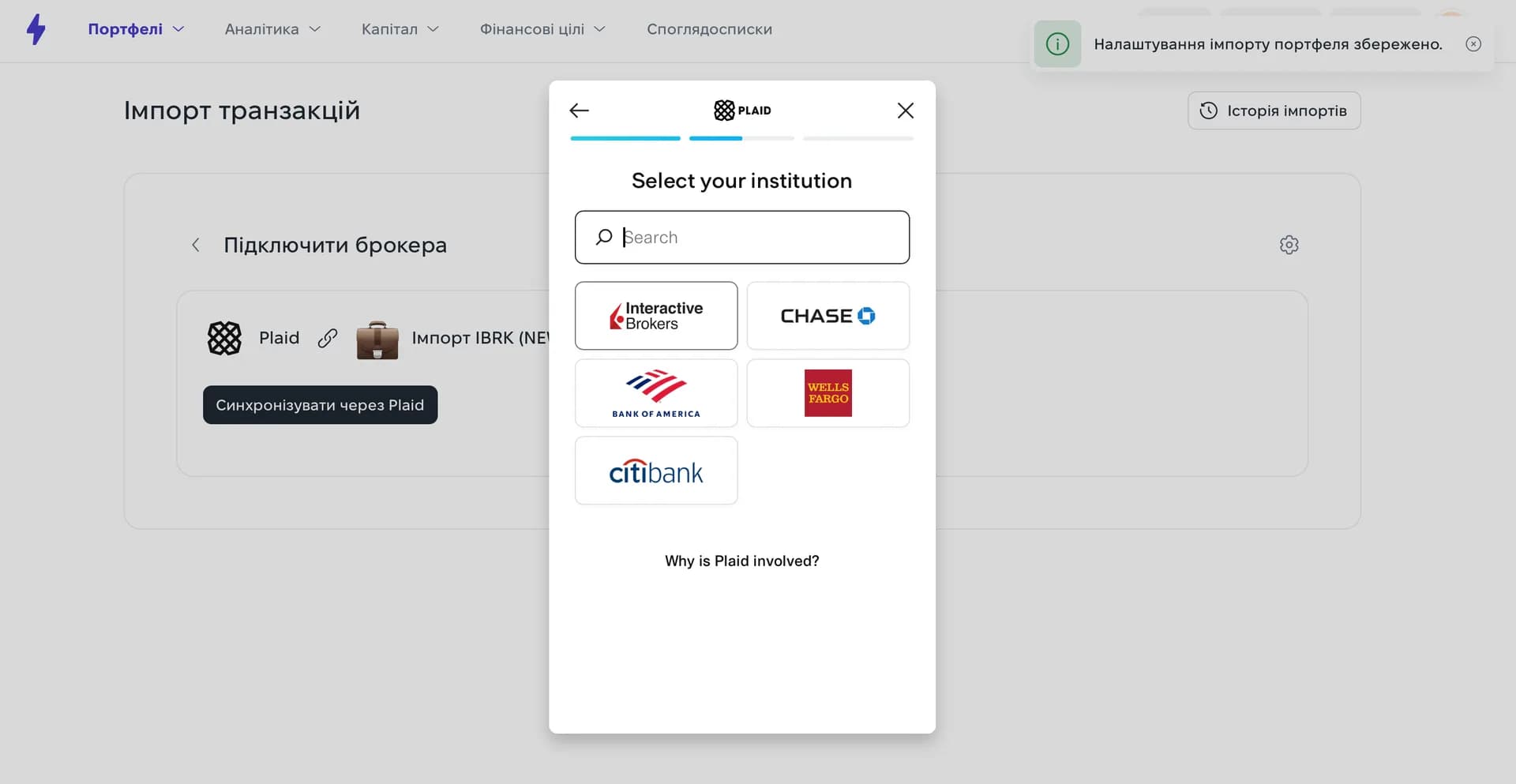
The sync runs through Plaid. Click “Continue”, then choose Interactive Brokers from the list of institutions. For security, Plaid will ask you to pass a captcha (reCAPTCHA).
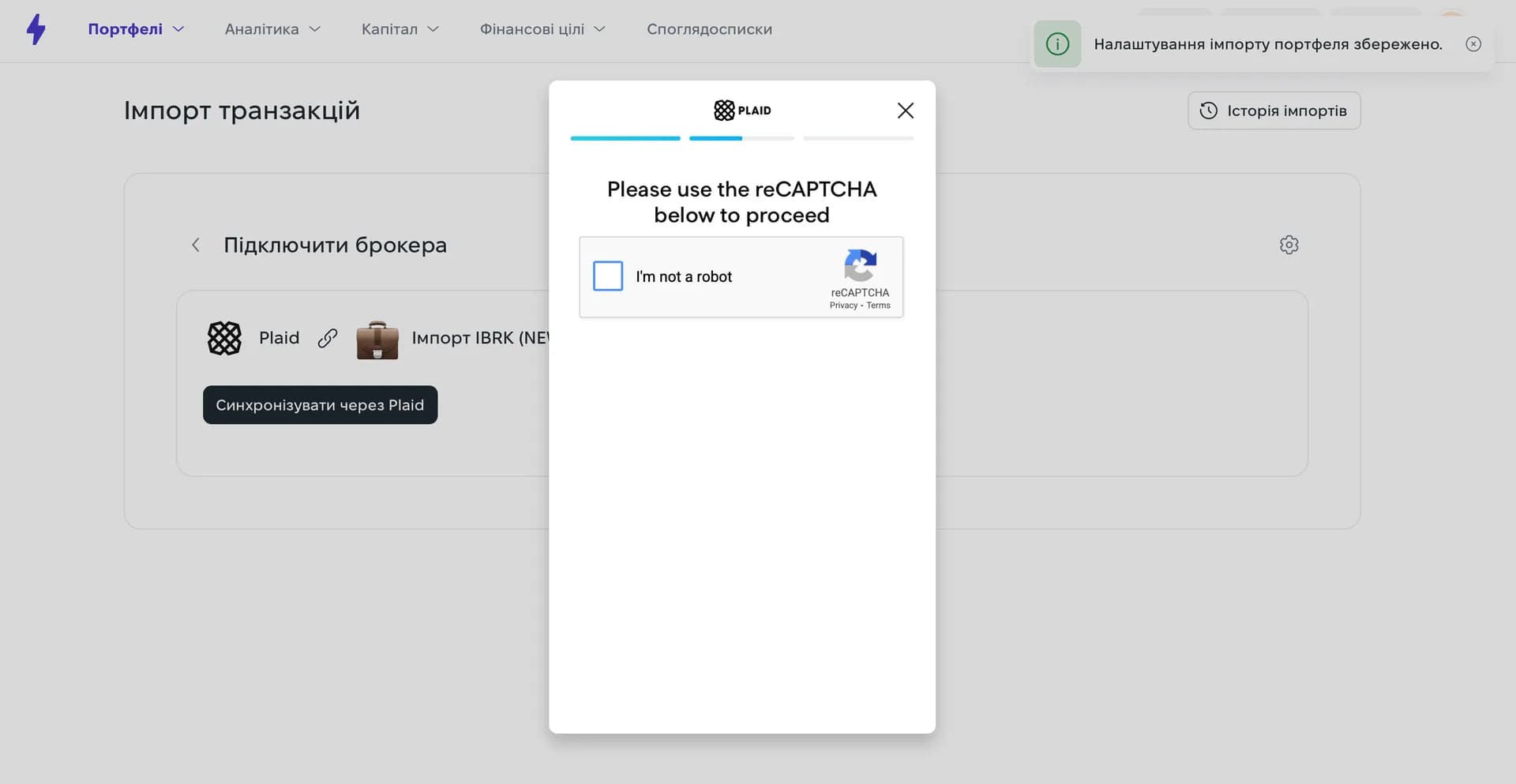
Step 5
Get your Token and Query ID from Interactive Brokers
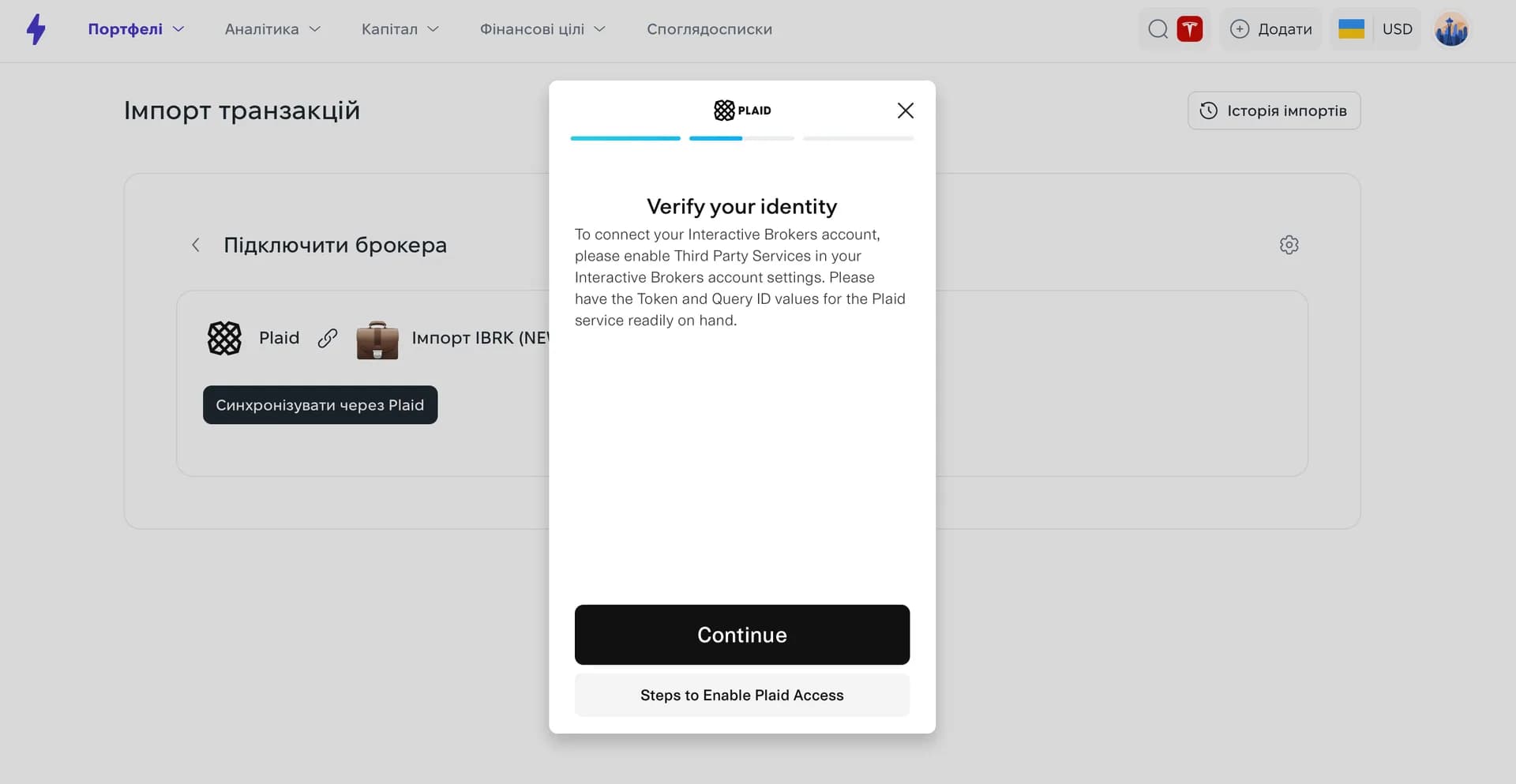
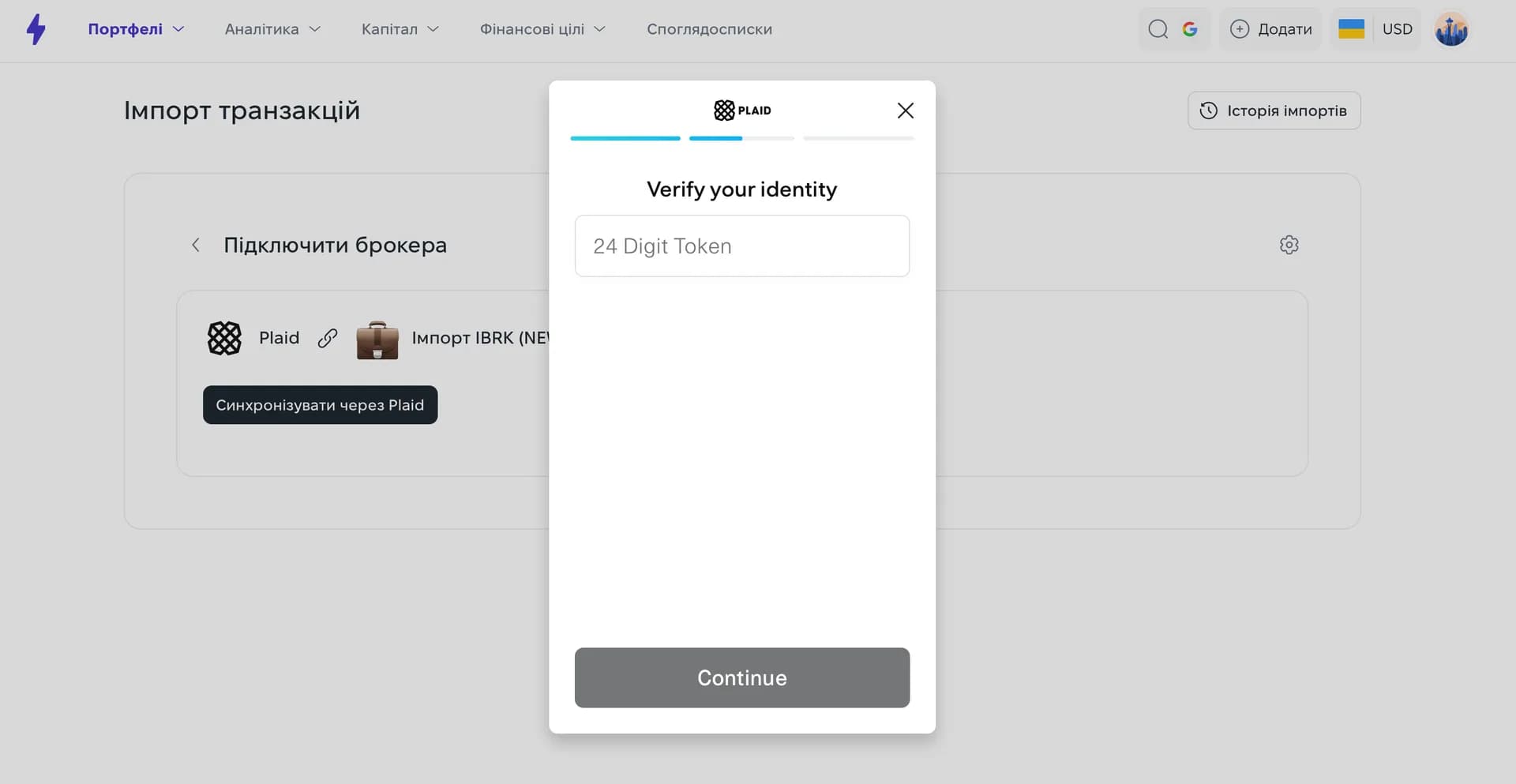
To connect the broker you need a 24-character Token and a 6-character Query ID from your IBKR account. In the Plaid window, a “Steps to Enable Plaid Access” hint sits just under the “Continue” button.
How to get the code in Interactive Brokers
Log in to your Interactive Brokers account.
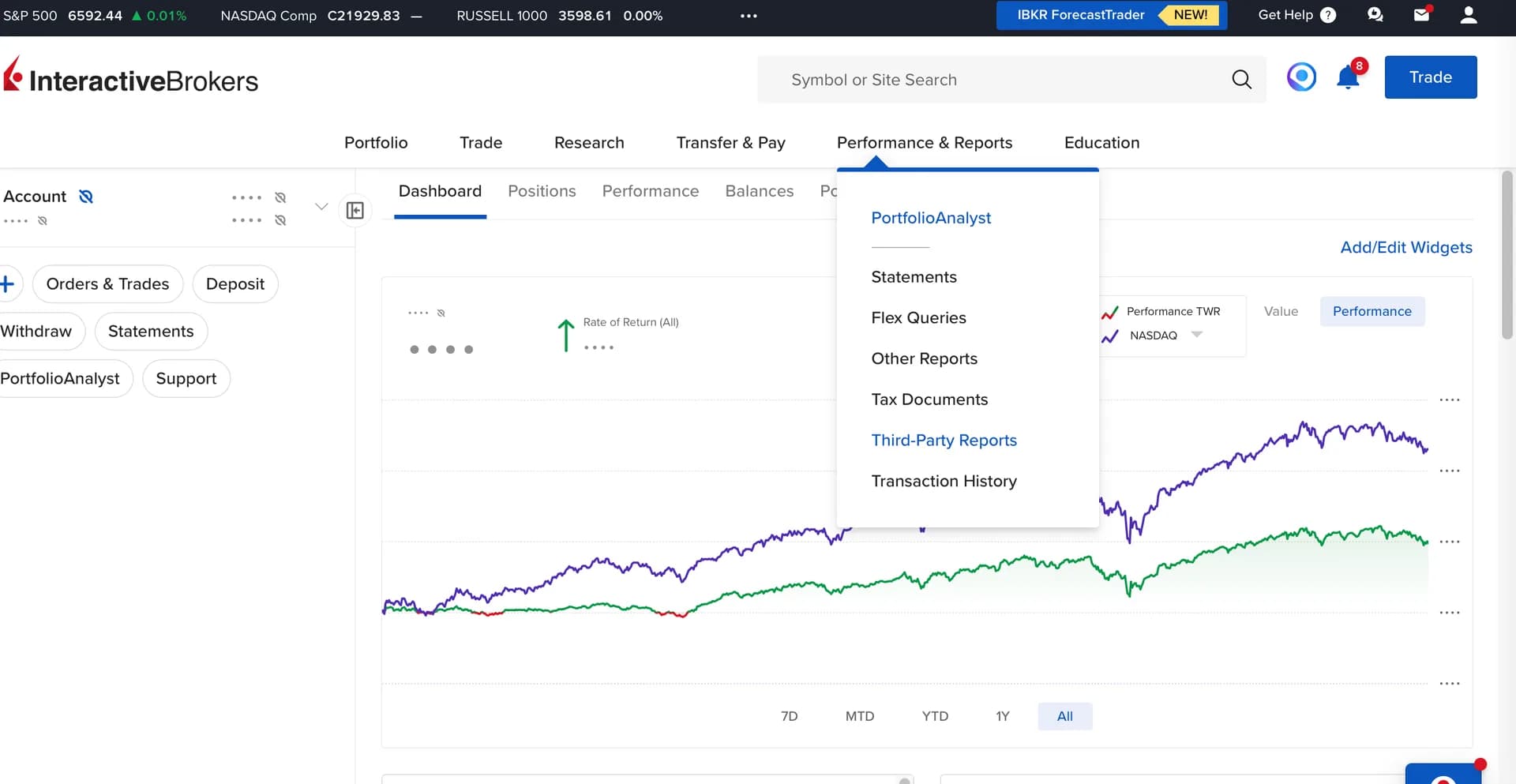
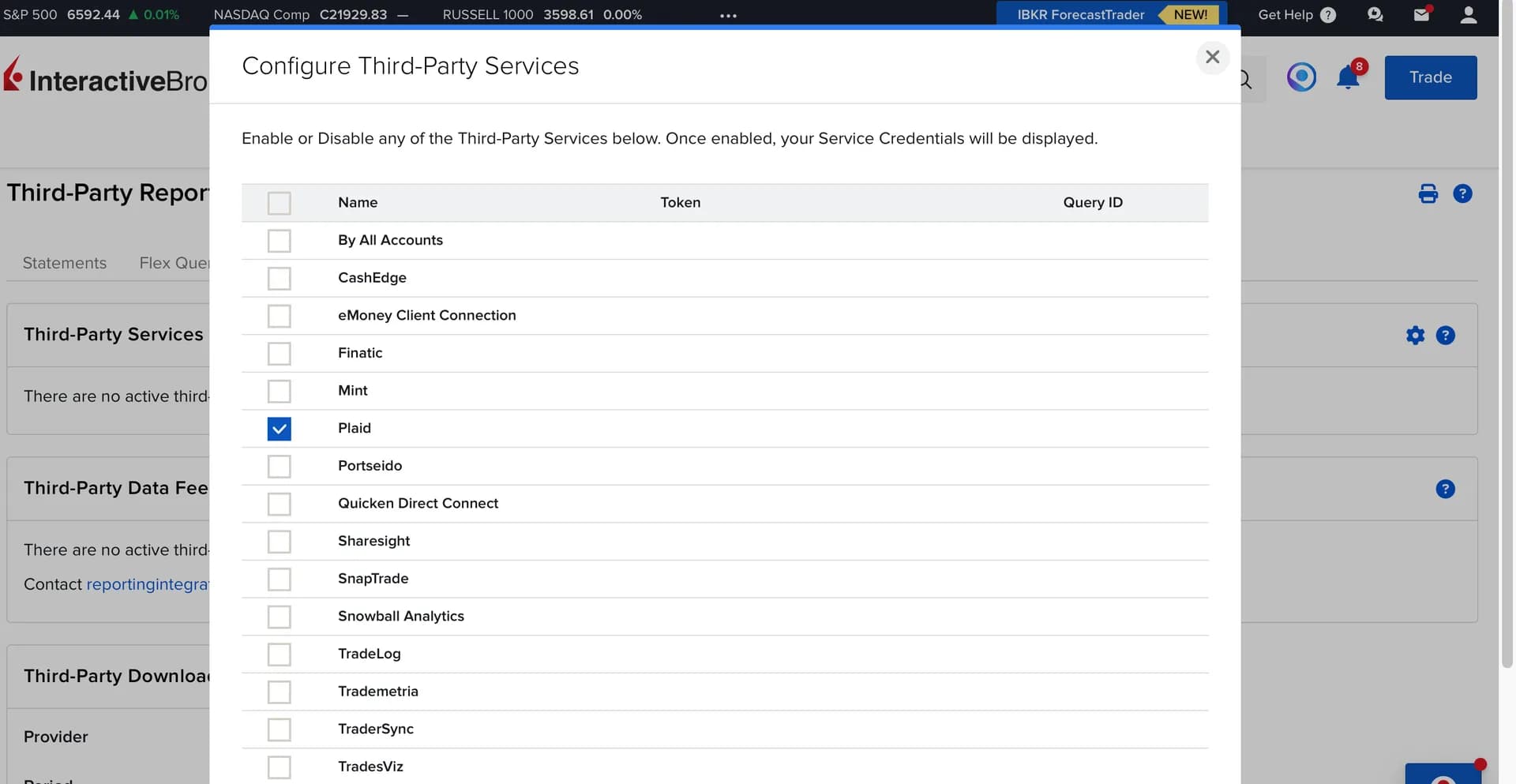
Go to Performance & Reports → Third-Party Reports.
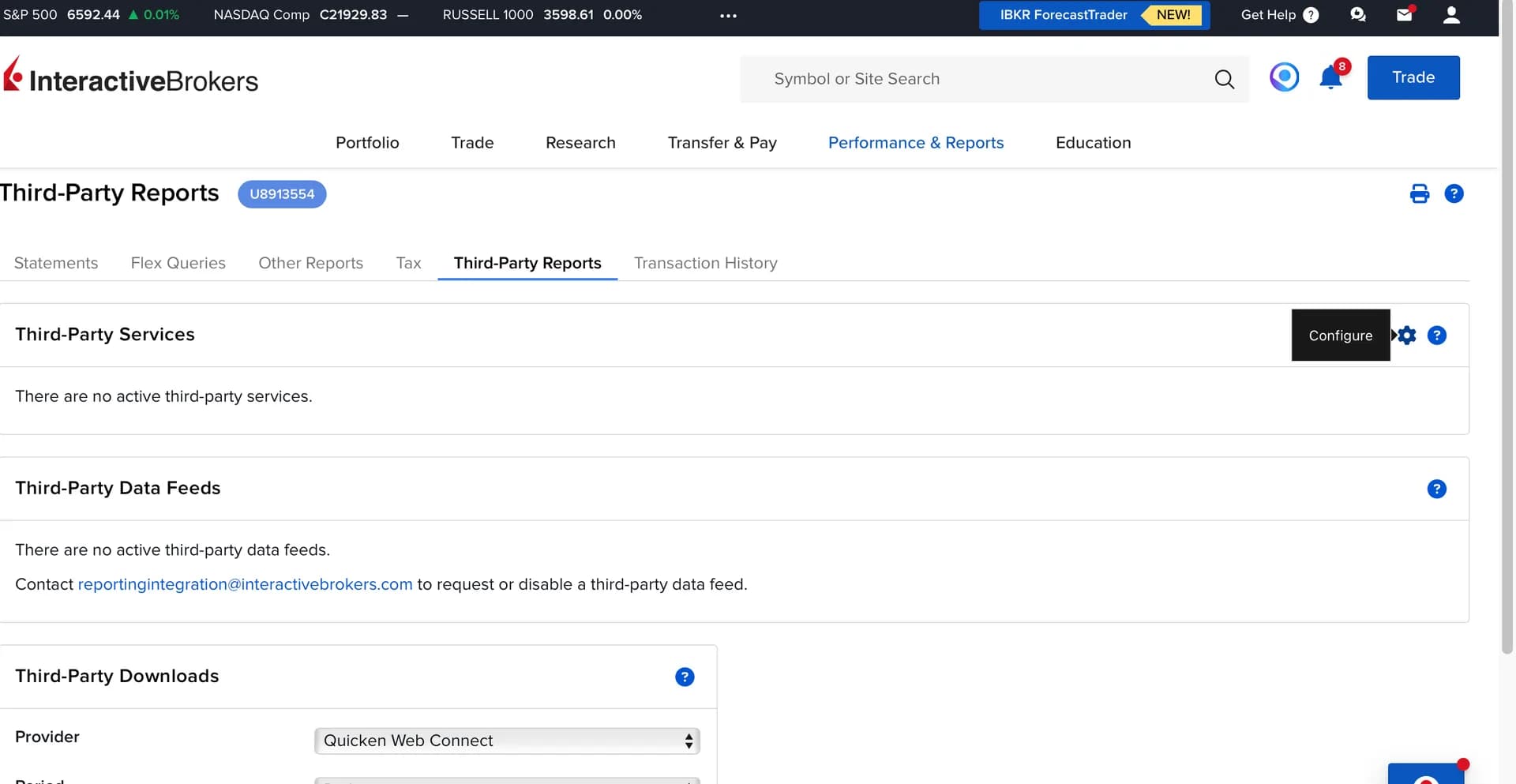
In the Third-Party Services section, click the settings icon ⚙️ → Configure.
Select Plaid from the list of services and click Save.
Two values will appear next to Plaid.a Token (24 characters) and a Query ID (6 characters). Enter them one by one into the matching fields in the Plaid window.
Step 6
Confirm and finish the connection
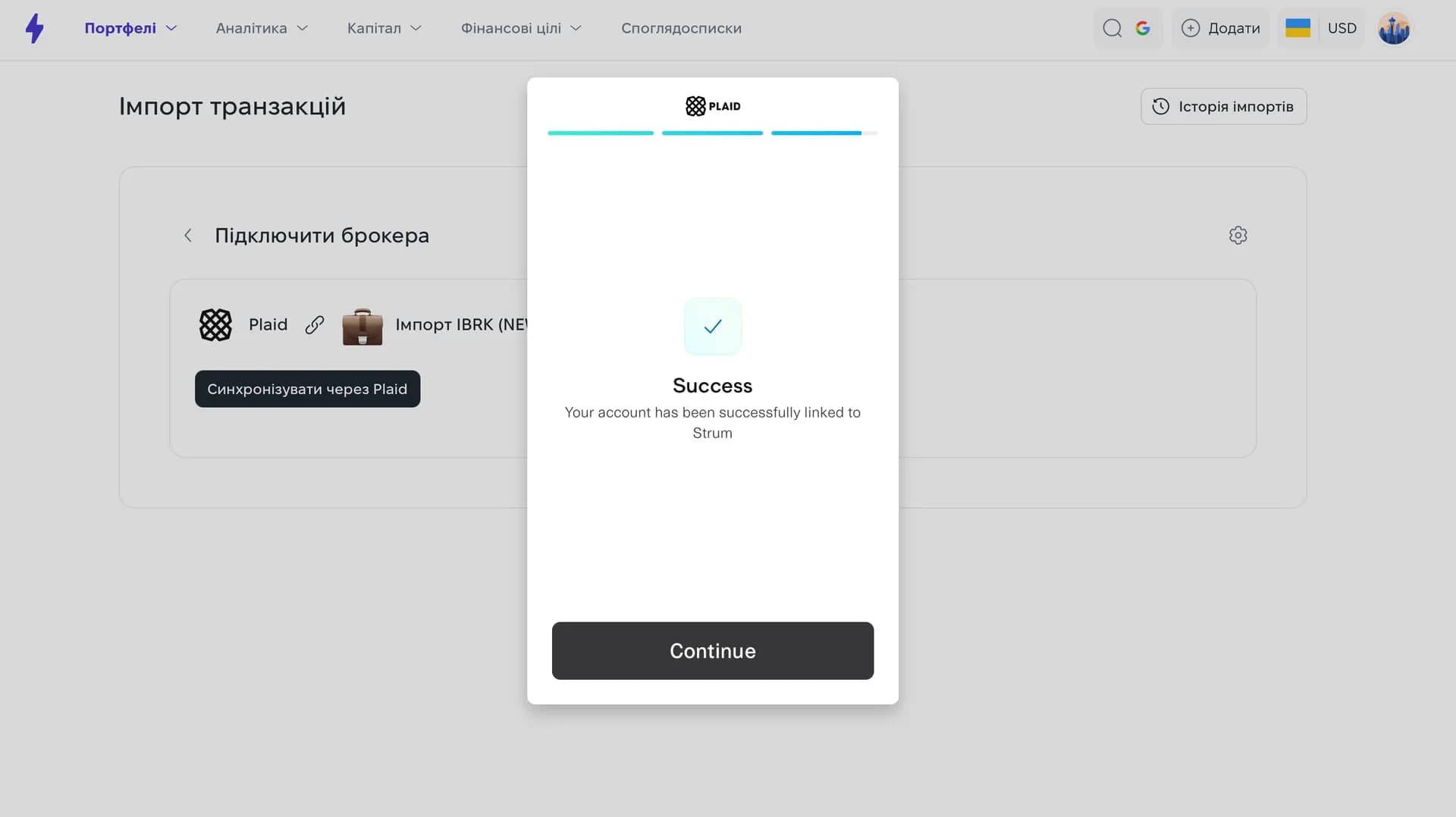
Plaid will ask you to confirm that the account is yours and, for security, send a code to the email address your broker account is linked to. Enter the code and click “Continue”. If everything is done correctly, you will see the “Success” screen. The sync itself takes a few minutes.
Step 7
Choose how to bring in your transaction history
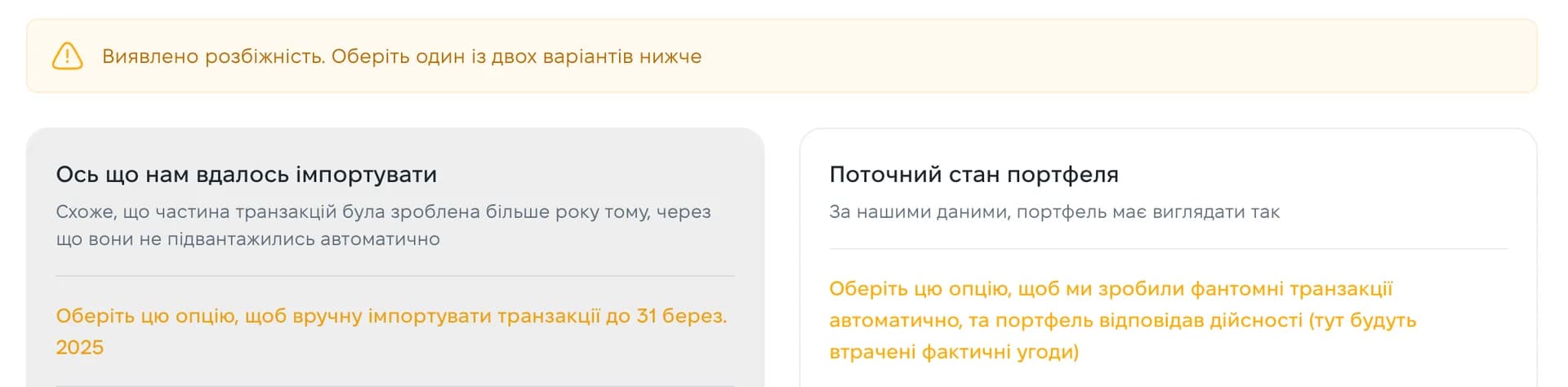
If Strum spots a mismatch between your current allocations and the data it has pulled in, it will offer you two options to choose from:
Import older transactions manually.the past year of trades is pulled in automatically, and you add anything older from your broker reports. This is the best option if you have been investing for more than a year and want an accurate history across every year.
Create phantom transactions.Strum generates transactions that bring the portfolio up to your current allocations. There are no reports to upload, but the exact trades and their statistics are lost.
That is it! Every new transaction from the sync date onwards will be added to this portfolio automatically.
How Strum features work together
After you connect IBKR, new transactions enter the Strum investment tracker, where you can review them alongside balance, P&L, allocation, and financial goals.
Once an import is complete, the portfolio dashboard shows synchronized holdings, total balance, and asset structure in one place.
Data transparency
Data sources and freshness
Strum receives market prices and financial metrics from Yahoo Finance and other external financial-data providers. Market-instrument quotes are displayed with a 5-minute delay. Ukrainian government bonds and other bond data are updated once a day.
Values may differ because of the source, trading session, time zone, exchange rate, or calculation methodology. The data is informational and is not intended for trade execution.
FAQ
Frequently asked questions about broker sync
The connection runs through Plaid. Strum receives authorized transaction data on a read-only basis, does not receive your brokerage password, and has no trading access to your account.
Automatic sync via Plaid is currently available for Interactive Brokers (IBKR). Data from other brokers can be imported from a CSV statement or entered as transactions manually.
Plaid automatically pulls in the past year of transactions. Older trades can be added manually from your broker reports, or you can use phantom transactions to bring the portfolio in line with your current allocations.
A manual import preserves the exact history of every trade — the best choice for accurate statistics and P&L. Phantom transactions only bring the portfolio up to its current state without that precise history, but they save you from uploading reports by hand.
No. The sync is configured once per portfolio. After that, every new transaction from the connection date onwards is added to that portfolio automatically.
Ready to automate your investment tracking?
Connect your broker and run your portfolios without manual spreadsheets — Strum does the rest.